Logging In
The login URL for the Atomic Artsci staging site is: https://test-atomic-artsci.pantheonsite.io/user
Your Administrative Toolbar and Shortcut Bar
After logging in, the administrative and shortcut toolbars will be visible at the very top of your page. The administrative toolbar will be black and the shortcut bar will be white. Depending on your user role, the options in the bars might be slightly different. If you do not see the lower shortcut bar when you sign in, click the 'Manage' button in the top row.
What's new in the Atomic WYSIWYG?


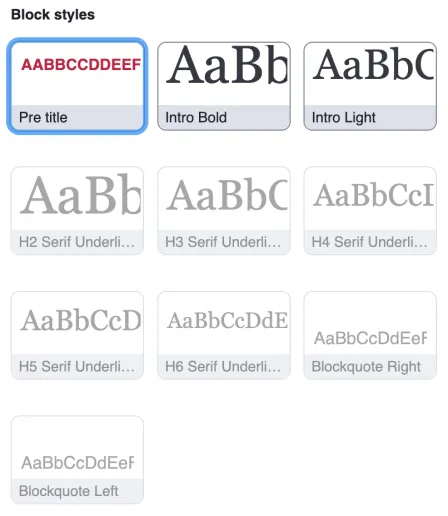
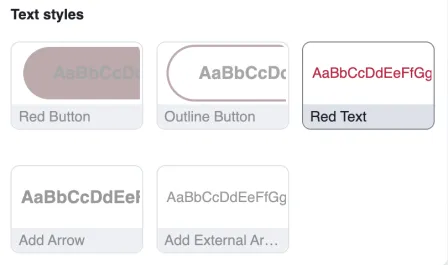

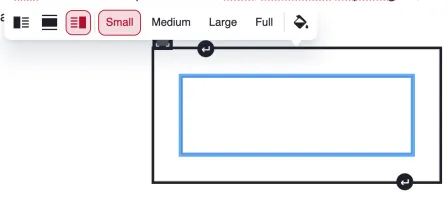
The callout function allows you to build a block of content that can be placed within your other WYSIWYG content.
Callout options:
- float right, left, or center
- small, medium, large, or full size options
- background color
- image
- links

What's new with page settings?
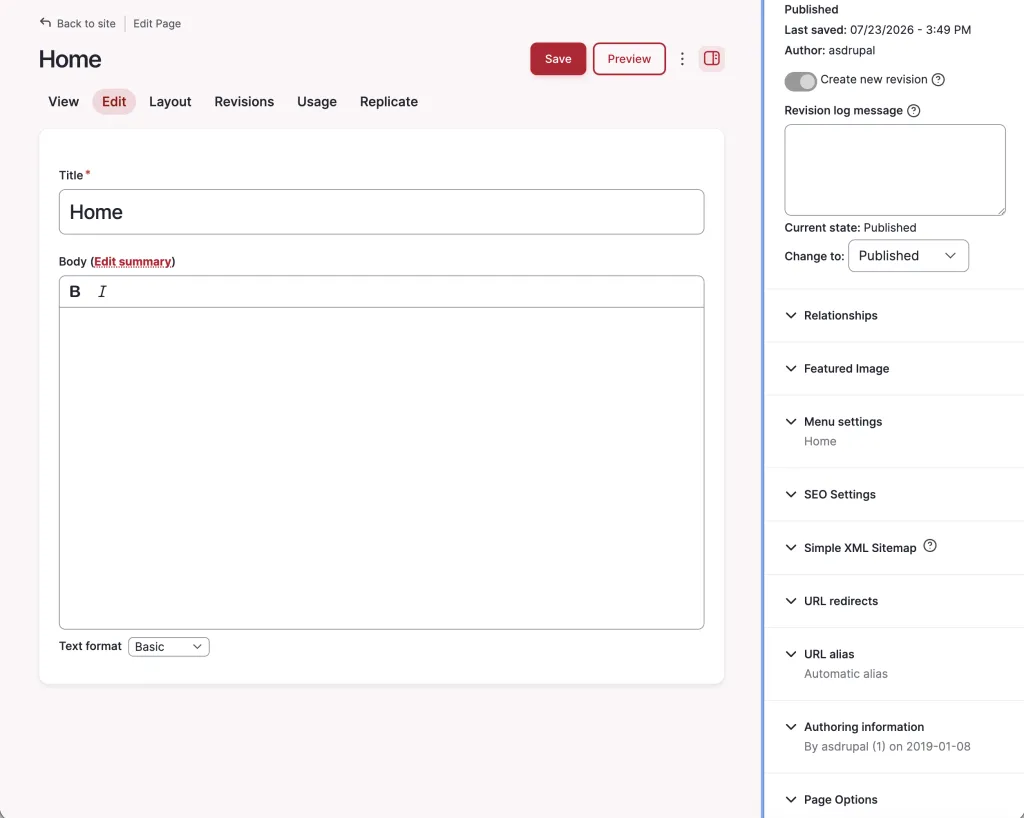
When editing a piece of content, there is a collection of page settings in tabs at the right of the editing screen. Most of these options are the same across all types of content. Exceptions to this are the Shared content settings (only available on sharable content) or Menu settings (not available on some types of content that should not go into a menu, such as events).
Depending on your user role, you may only see some of these options.
If you are making an article, event, academic event, person, book, or image card content type, then they are still located on the right hand side column when you are editing your content.
If you are making a Page, then they are in a slightly different place. When you are editing, there is a section of tabs at the top of the page. Instead of working in the layout editing tab, click on the 'edit' tab. This will open up the settings sidebar.